> ## Documentation Index
> Fetch the complete documentation index at: https://docs.slickerhq.com/llms.txt
> Use this file to discover all available pages before exploring further.
# Configuration
> Learn how to configure and customize Slicker recovery settings
### Recovery Settings
To access the recovery settings, you can:
* **Use the menu:** Click the user icon in the bottom-left corner and select **"Recovery Settings"**.
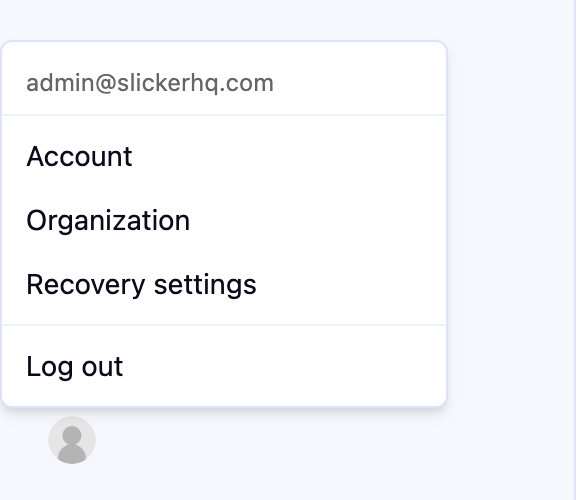 * **Direct link:** [Open Recovery Settings](https://app.slickerhq.com/settings/recovery).
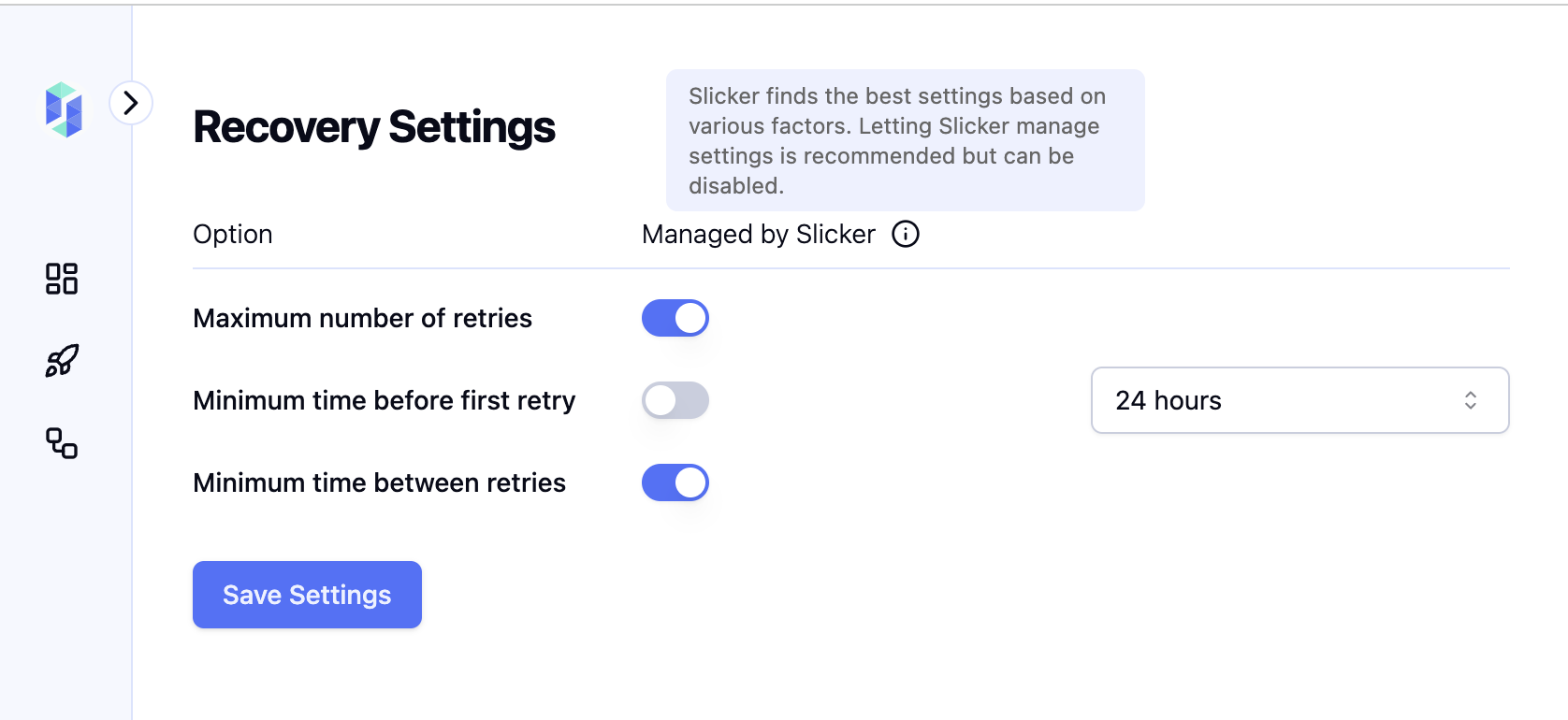
By default, Slicker dynamically manages recovery settings based on factors such as issuer bank preferences, customer behavior, and other variables that influence the recovery process. These intelligent defaults are designed to optimize results and minimize churn.
However, if you prefer, you can customize settings to suit your needs. Adjustable options include:
* Maximum number of retries
* Minimum time between retries
* Minimum time before the first retry
* **Direct link:** [Open Recovery Settings](https://app.slickerhq.com/settings/recovery).
By default, Slicker dynamically manages recovery settings based on factors such as issuer bank preferences, customer behavior, and other variables that influence the recovery process. These intelligent defaults are designed to optimize results and minimize churn.
However, if you prefer, you can customize settings to suit your needs. Adjustable options include:
* Maximum number of retries
* Minimum time between retries
* Minimum time before the first retry
 ### Custom Settings
Need a specific setting that’s not currently available? Let us know by [contacting us](https://www.slickerhq.com/contact), and we’ll work with you to address your requirements.
### Custom Settings
Need a specific setting that’s not currently available? Let us know by [contacting us](https://www.slickerhq.com/contact), and we’ll work with you to address your requirements.