> ## Documentation Index
> Fetch the complete documentation index at: https://docs.slickerhq.com/llms.txt
> Use this file to discover all available pages before exploring further.
# Stripe
> Learn how to connect Stripe to Slicker
If you have already created a [Stripe Billing integration](/integrations/billing/stripe) for the same Stripe account you don't have to add another one.
### Prerequisites
Slicker integrates with Stripe via an API key. Creating a Stripe API key requires a Stripe user enough permissions to do so.
Stipe user roles that have this permission include `Administrator`, `Super Administrator`, and `Developer`.
### (Option 1: Stripe Marketplace App) Integerate via the Stripe Marketplace
1. Go to the [Slicker App page in the Stripe Marketplace](https://marketplace.stripe.com/apps/slicker).
2. Click on the `Install` button.
3. Follow the instructions to authorize Slicker to access your Stripe account.
4. Once authorized, you will be able to use click the `Link` button in the Slicker app page to link your Stripe account to your Slicker instance.
### (Option 2: API Key) Create credentials
1. Go to the Stripe dashboard to create a new restricted API key [here](https://dashboard.stripe.com/apikeys/create).
2. Give the key a name like `Slicker`.
3. For permissions select the following:
* `Read` on `All core resources`
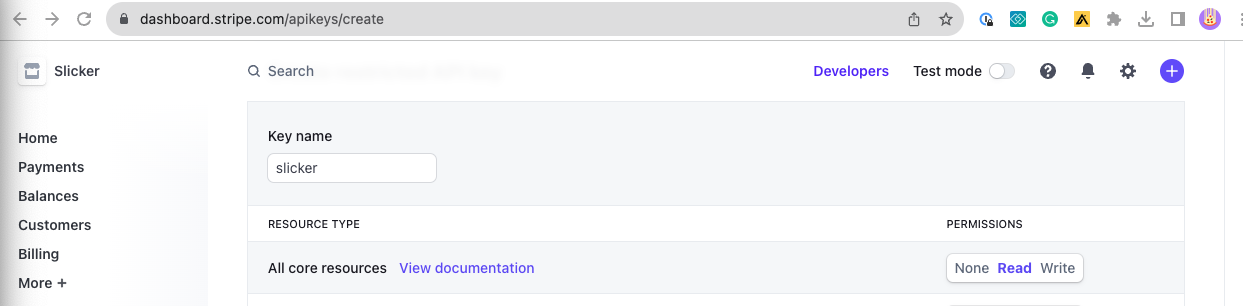 * `Read` on `All Connect resources`
 * `Read` on `All Reporting resources`
 4. Click the `Create key` button. If prompted confirm your password. Copy the generated key - we will need it later.
### (Option 2: API Key) Create integration in Slicker
1. Go to Slicker's [new integration page](https://app.slickerhq.com/integrations/new).
2. Select `Stripe` from the list of integrations.
3. Give the integration a name and description to help you identify it later.
4. Enter the API key you copied earlier.
5. Leave Stripe Billing option unchecked. This integration is for syncing payment data only. If you are using Stripe Billing please refer to the [Stripe Billing integration guide](/integrations/billing/stripe).
6. Click the `Submit` button to create the integration.
### (Optional) Enable real-time webhooks
By default Slicker keeps your data in sync by polling the Stripe API on a schedule. Adding a webhook lets Stripe push payment changes to Slicker the moment they happen, for near real-time recovery tracking.
Webhooks are configured **per Stripe account**, in that account's own Stripe Dashboard. They're optional and can be added at any time after the integration is created.
1. In your Slicker integration settings, turn on **Webhooks** and copy the **Webhook URL** Slicker shows you. This URL is unique to your integration.
2. In the [Stripe Dashboard](https://dashboard.stripe.com/webhooks), go to **Developers → Webhooks** and click **Add endpoint**.
3. Paste the Slicker Webhook URL into the **Endpoint URL** field.
4. Under **Select events**, subscribe to **only the events Slicker uses** (below). You can pick **All events** to get started, but on high-volume accounts we recommend selecting just these — Slicker ignores anything else, so extra events are only wasted webhook traffic:
* **Payments** — `payment_intent.succeeded`, `payment_intent.payment_failed`, `payment_intent.processing`, `payment_intent.requires_action`, `payment_intent.canceled`
5. Click **Add endpoint** to save it.
6. Open the endpoint you just created, reveal its **Signing secret** (it starts with `whsec_`), and copy it.
7. Back in Slicker, paste the signing secret into the **Webhook Signing Secret** field and save.
Copy the **signing secret** (`whsec_…`) — not your API key (`sk_`/`rk_`) or the endpoint ID. If you ever rotate the secret in Stripe, update it in Slicker too.
Using Stripe Billing? Follow the webhook steps in the [Stripe Billing guide](/integrations/billing/stripe) instead — it adds the invoice and subscription events.
### Troubleshooting
On integration creation, Slicker will attempt to connect to Stripe using the provided API key.
If the connection fails, you will see an error message like the one below.
Please double-check the API key, make sure it has the correct permissions, and try again.
4. Click the `Create key` button. If prompted confirm your password. Copy the generated key - we will need it later.
### (Option 2: API Key) Create integration in Slicker
1. Go to Slicker's [new integration page](https://app.slickerhq.com/integrations/new).
2. Select `Stripe` from the list of integrations.
3. Give the integration a name and description to help you identify it later.
4. Enter the API key you copied earlier.
5. Leave Stripe Billing option unchecked. This integration is for syncing payment data only. If you are using Stripe Billing please refer to the [Stripe Billing integration guide](/integrations/billing/stripe).
6. Click the `Submit` button to create the integration.
### (Optional) Enable real-time webhooks
By default Slicker keeps your data in sync by polling the Stripe API on a schedule. Adding a webhook lets Stripe push payment changes to Slicker the moment they happen, for near real-time recovery tracking.
Webhooks are configured **per Stripe account**, in that account's own Stripe Dashboard. They're optional and can be added at any time after the integration is created.
1. In your Slicker integration settings, turn on **Webhooks** and copy the **Webhook URL** Slicker shows you. This URL is unique to your integration.
2. In the [Stripe Dashboard](https://dashboard.stripe.com/webhooks), go to **Developers → Webhooks** and click **Add endpoint**.
3. Paste the Slicker Webhook URL into the **Endpoint URL** field.
4. Under **Select events**, subscribe to **only the events Slicker uses** (below). You can pick **All events** to get started, but on high-volume accounts we recommend selecting just these — Slicker ignores anything else, so extra events are only wasted webhook traffic:
* **Payments** — `payment_intent.succeeded`, `payment_intent.payment_failed`, `payment_intent.processing`, `payment_intent.requires_action`, `payment_intent.canceled`
5. Click **Add endpoint** to save it.
6. Open the endpoint you just created, reveal its **Signing secret** (it starts with `whsec_`), and copy it.
7. Back in Slicker, paste the signing secret into the **Webhook Signing Secret** field and save.
Copy the **signing secret** (`whsec_…`) — not your API key (`sk_`/`rk_`) or the endpoint ID. If you ever rotate the secret in Stripe, update it in Slicker too.
Using Stripe Billing? Follow the webhook steps in the [Stripe Billing guide](/integrations/billing/stripe) instead — it adds the invoice and subscription events.
### Troubleshooting
On integration creation, Slicker will attempt to connect to Stripe using the provided API key.
If the connection fails, you will see an error message like the one below.
Please double-check the API key, make sure it has the correct permissions, and try again.
